Bookmarks & Verse Collections
Bookmark a chapter, a single verse, or curate a named collection of verses — complete with cross-references — for deeper study.
Free account required. Works entirely on its own, or attach a collection to a study later.
Quick bookmark — a chapter or a verse
- While reading, click the bookmark icon next to any verse, or the ✦ Bookmark Chapter button in the chapter action bar to bookmark the whole chapter.
- Optionally, in the My Bookmarks manager, you can add a note.
- Find it any time on the Bookmarks tab of My Bookmarks.
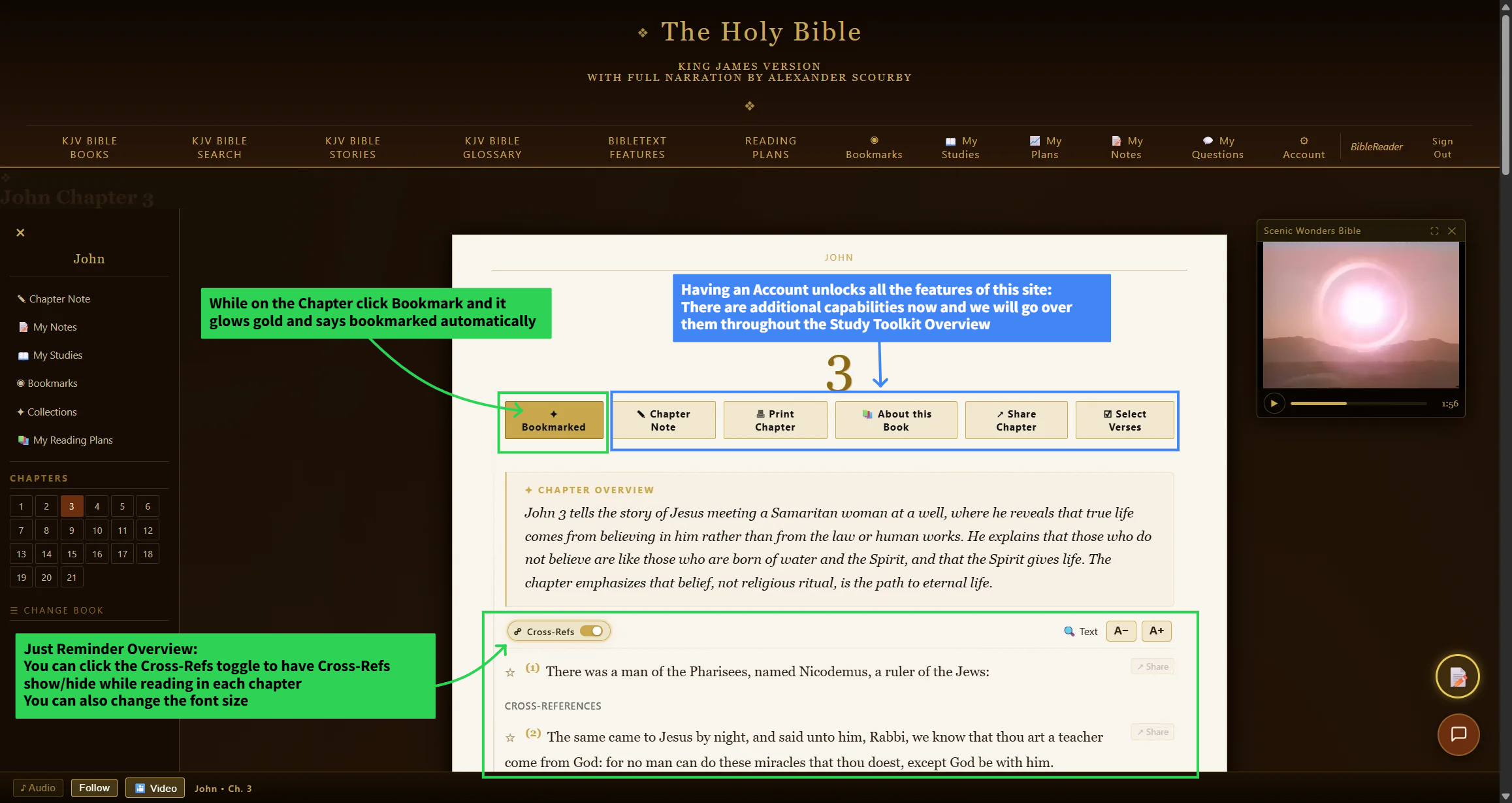
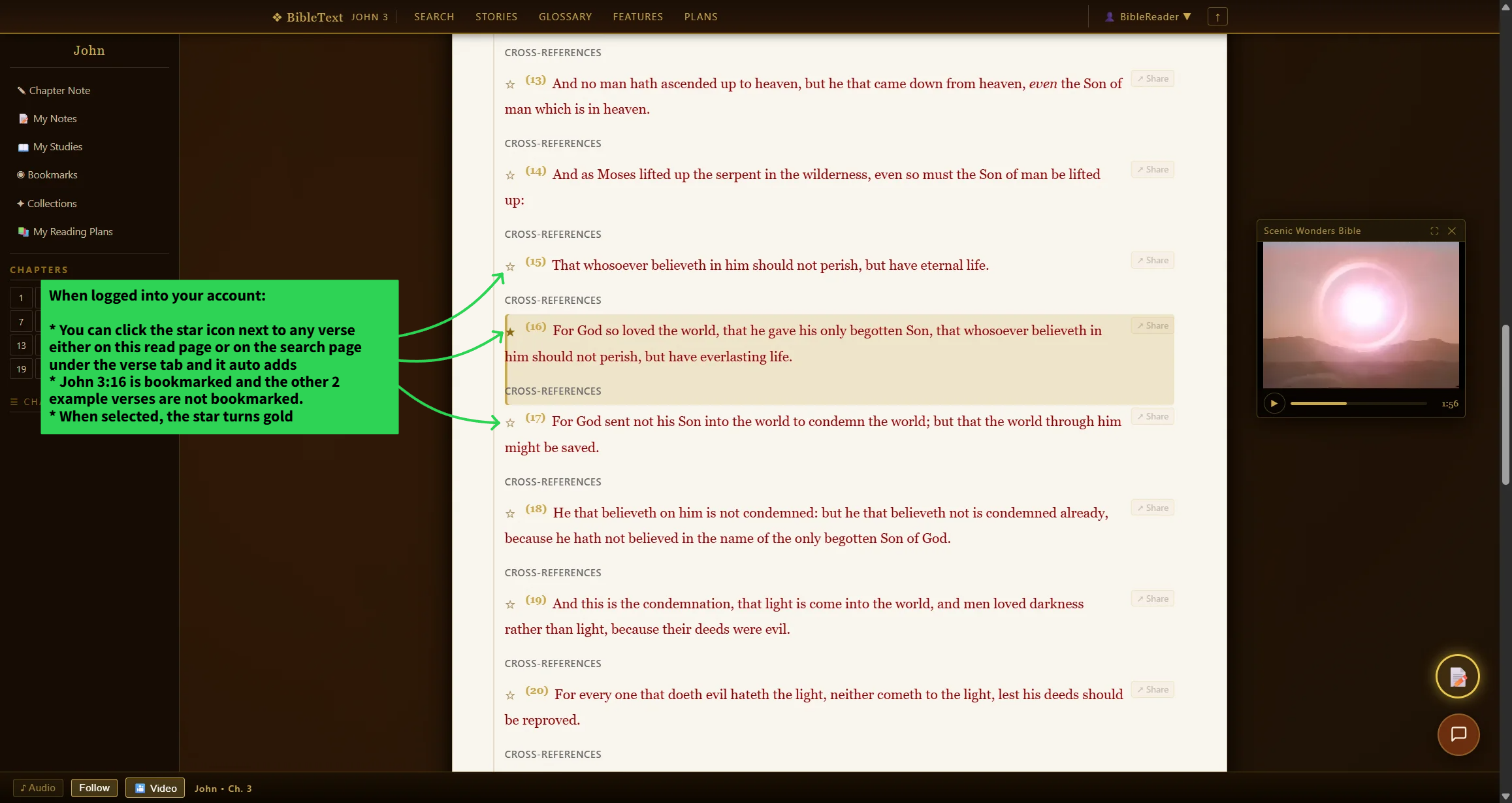
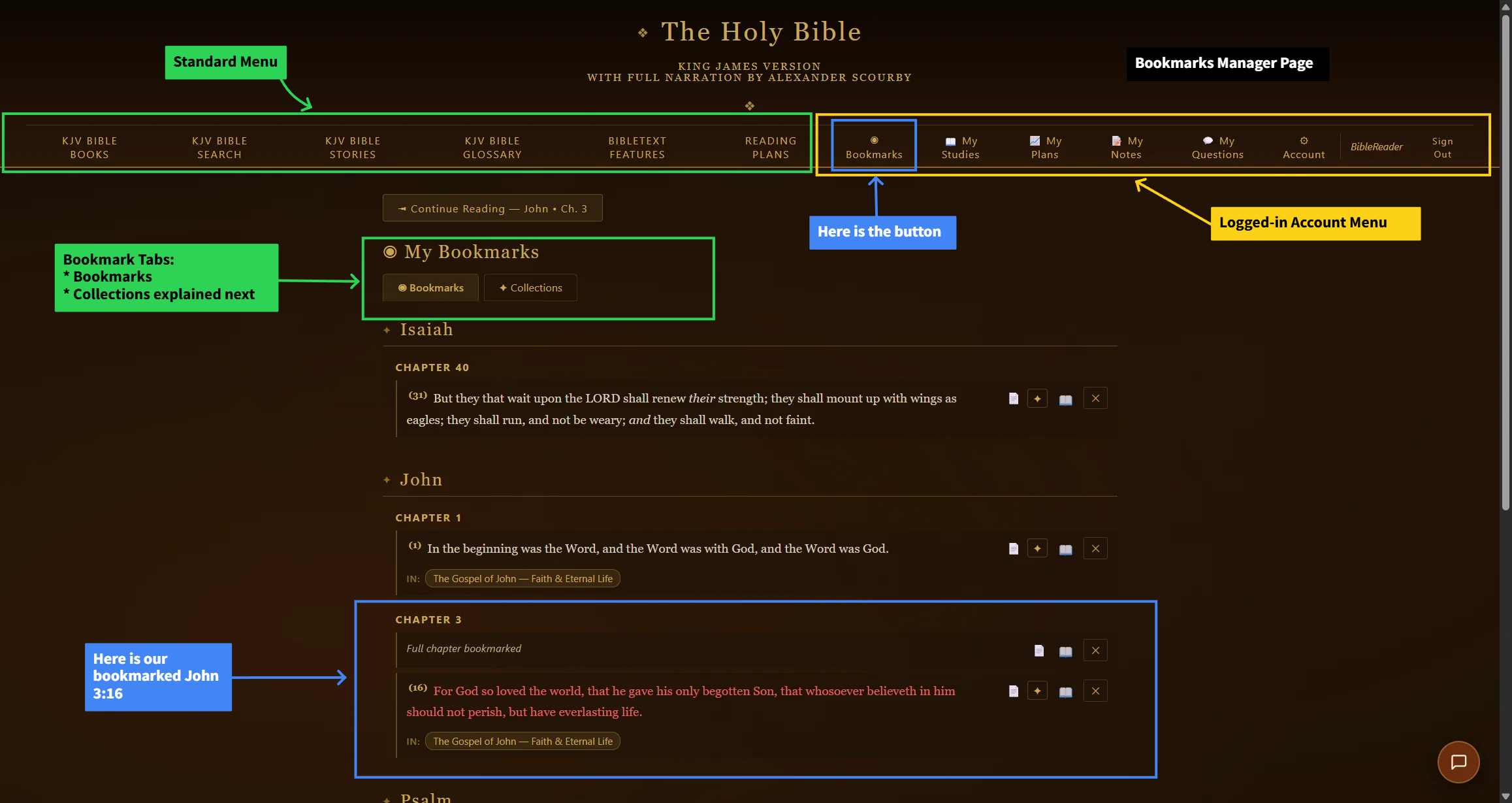
Bookmark Chapter — the ✦ Bookmark Chapter button in the chapter action bar saves the whole chapter.
Verse Collections — multiple verses with cross-references
A collection is a named group of verses you build while reading, and it’s where Select Verses, Add to Selection, and Collect These Verses come in — they solve three different problems:
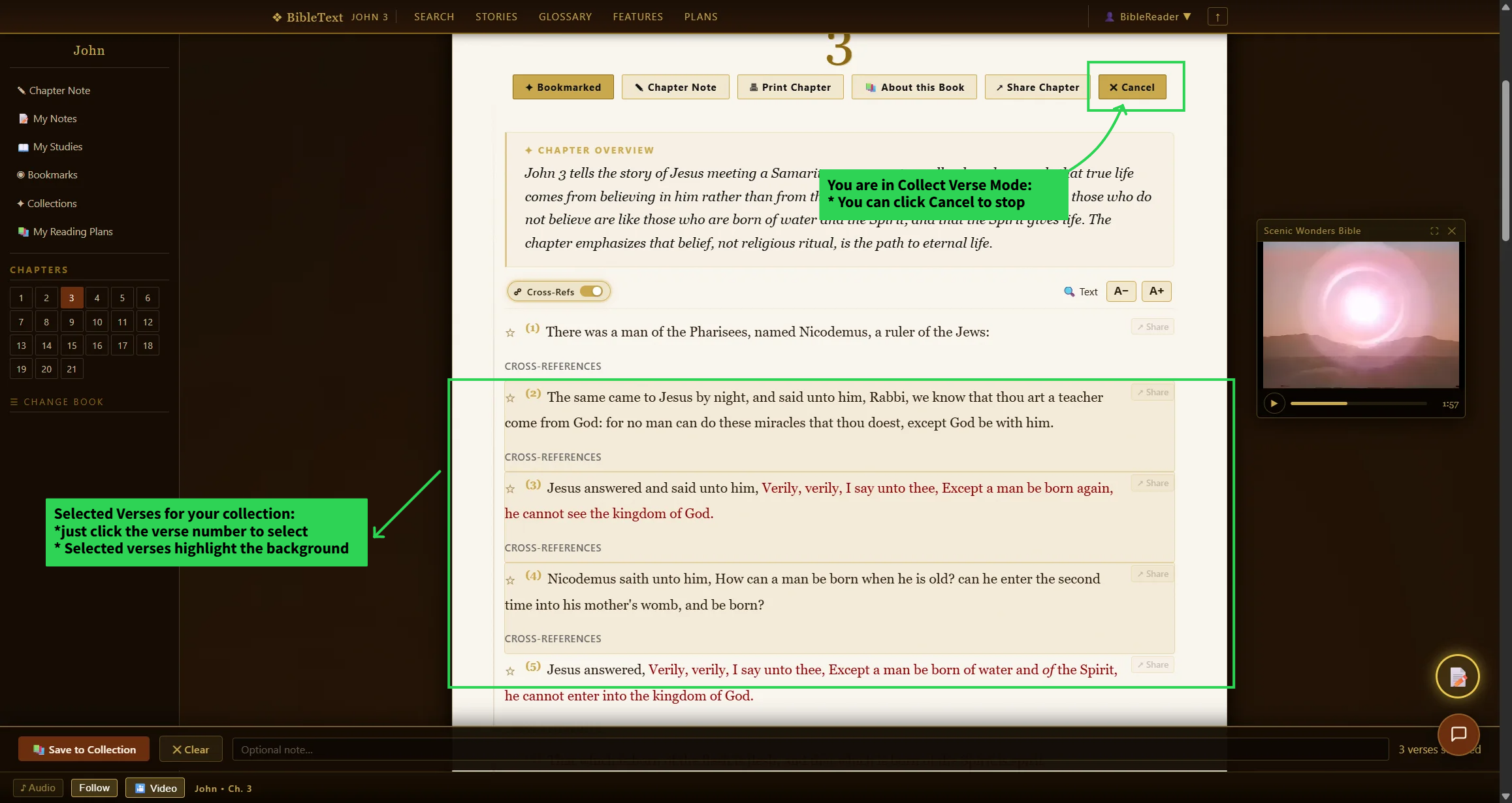
- Select Verses — click this button above a chapter, then tap the verses you want; each tap adds that verse to your current selection.
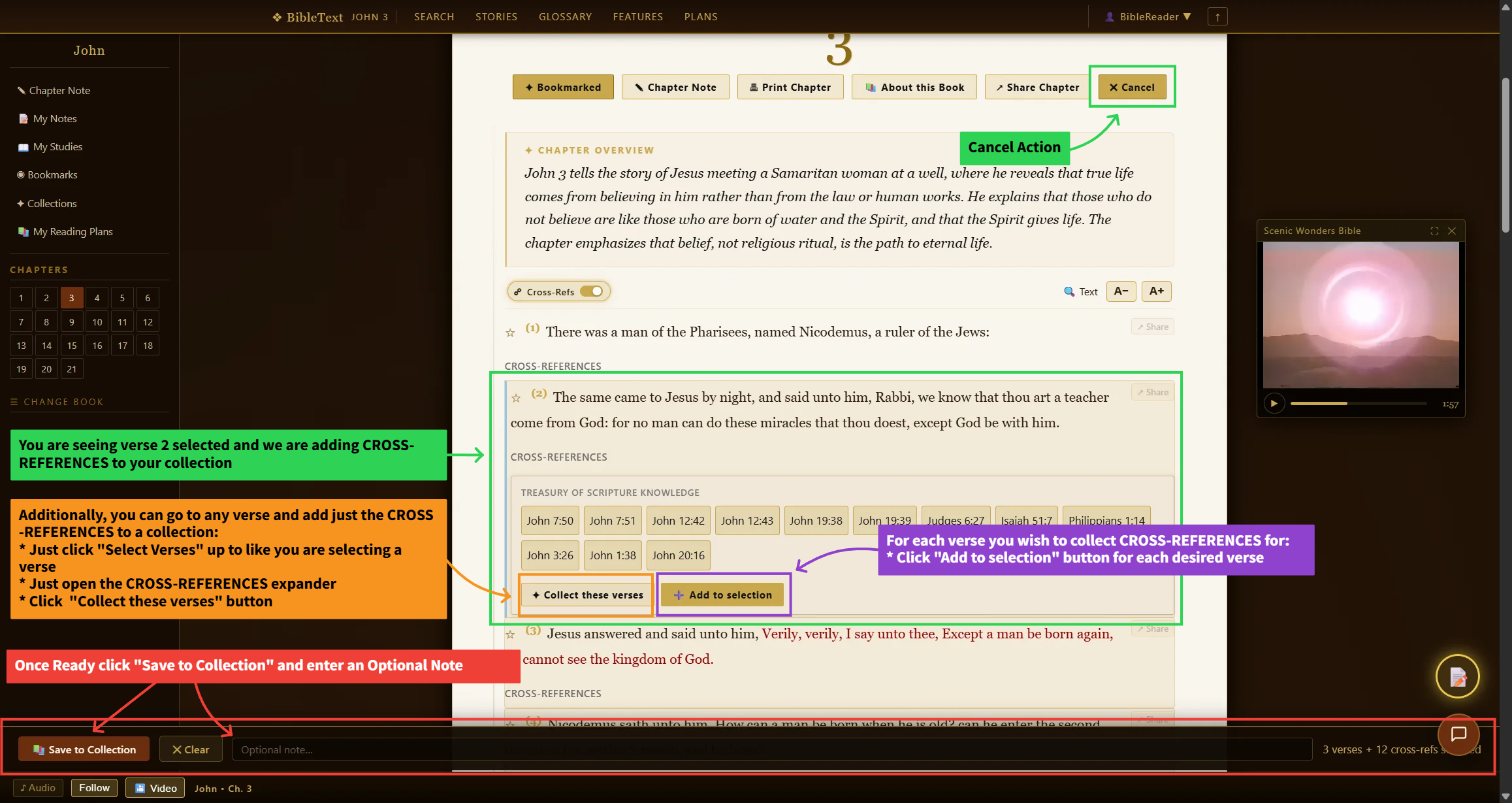
- Add to Selection — used on a cross-reference card to pull a referenced verse (with its own text) into the collection you’re building, tagged as an xref so it’s always shown attached to the verse that referenced it.
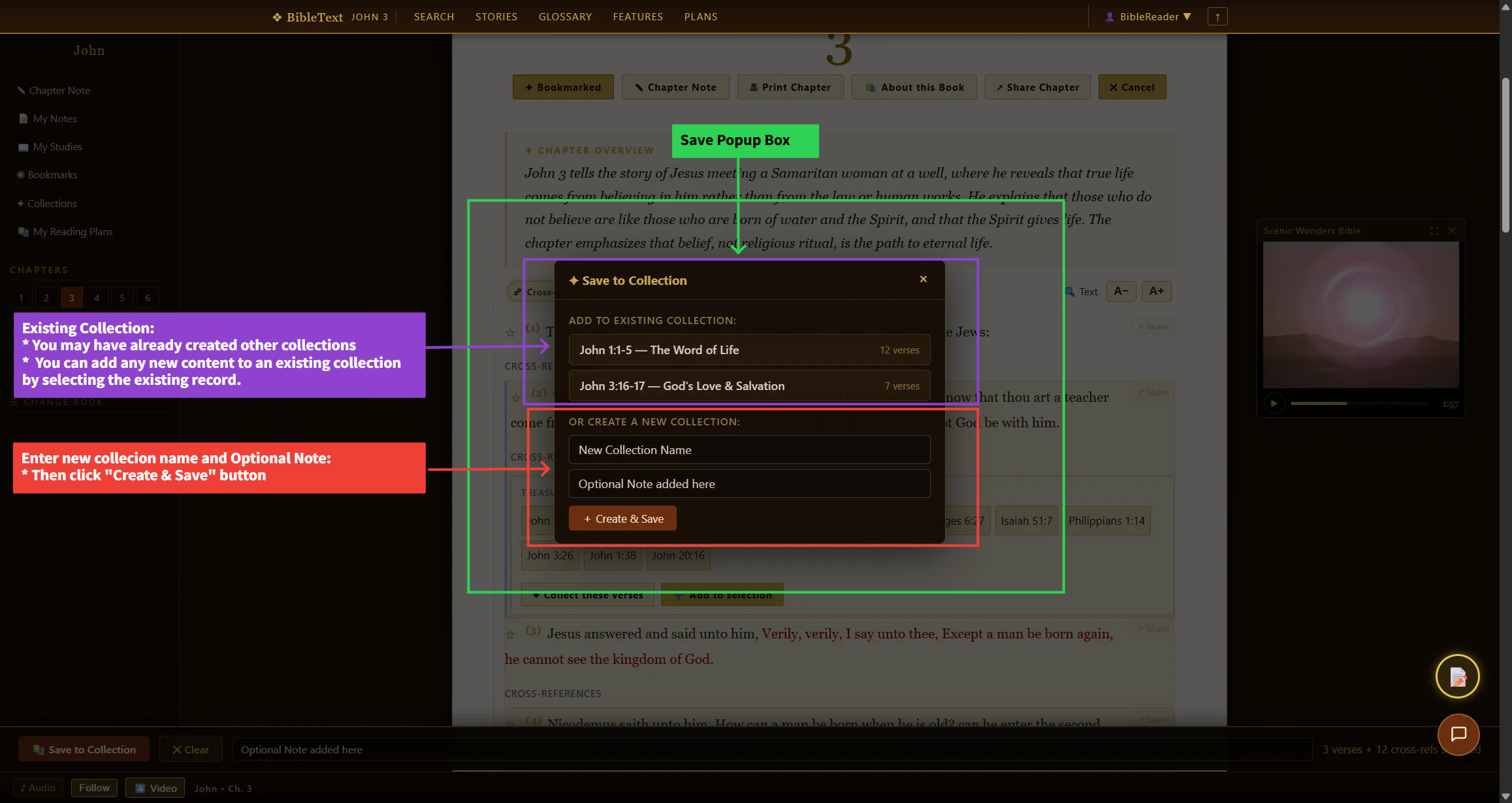
- Collect These Verses — saves your current selection as a new, separately named collection.
- Click Select Verses at the top of the page to start the process.
- Select your verse(s).
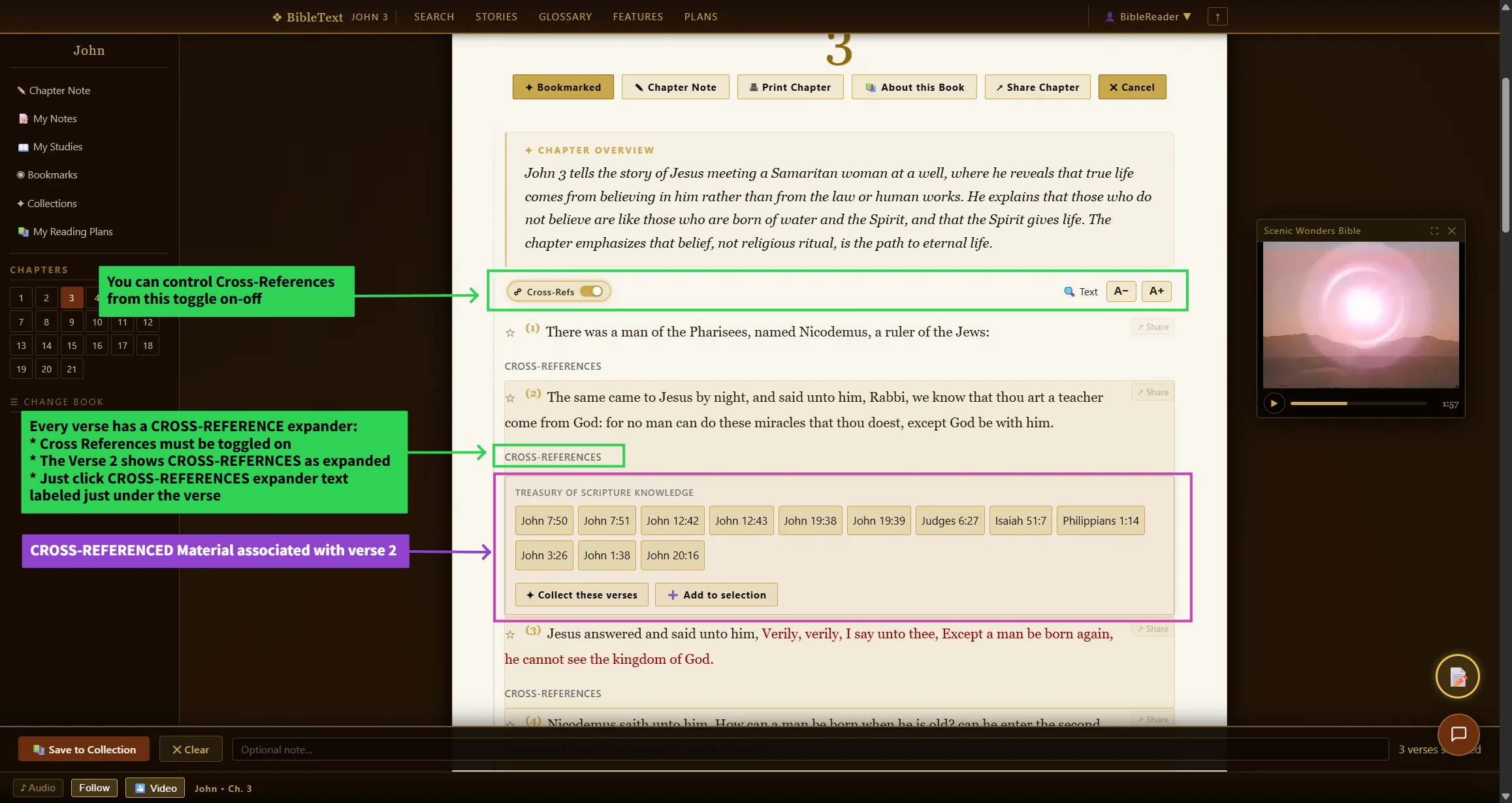
- Expand the Cross-references link on a selected verse to show its cross references.
- Click Add to Selection if you want to bring in all cross-references of that verse.
- Click Save to Collection at the bottom of the page and add an optional note.
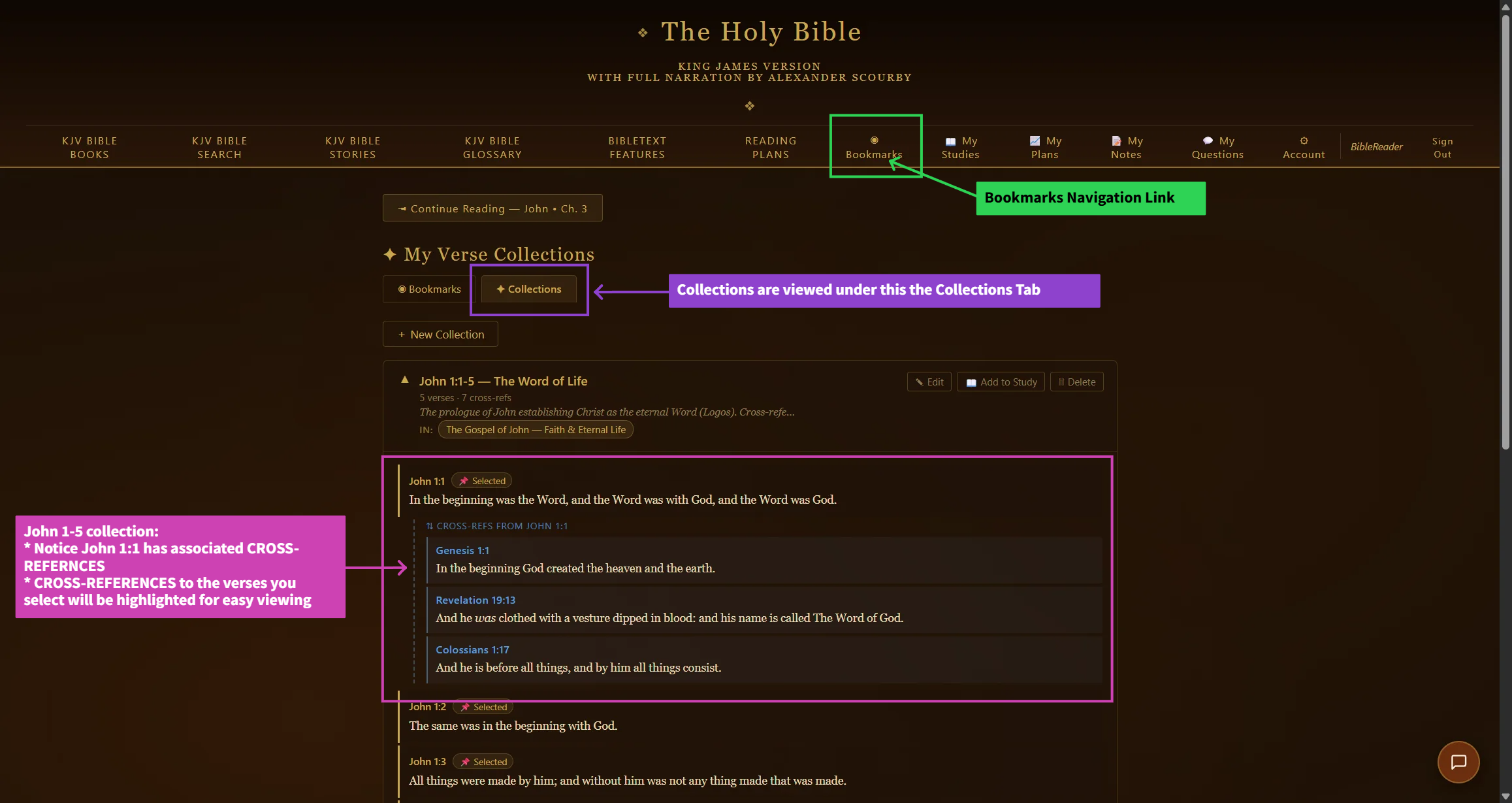
- Completely edit your collections in My Bookmarks under the Collections tab — the collection name expands to show every selected verse, with its cross-references indented directly underneath.
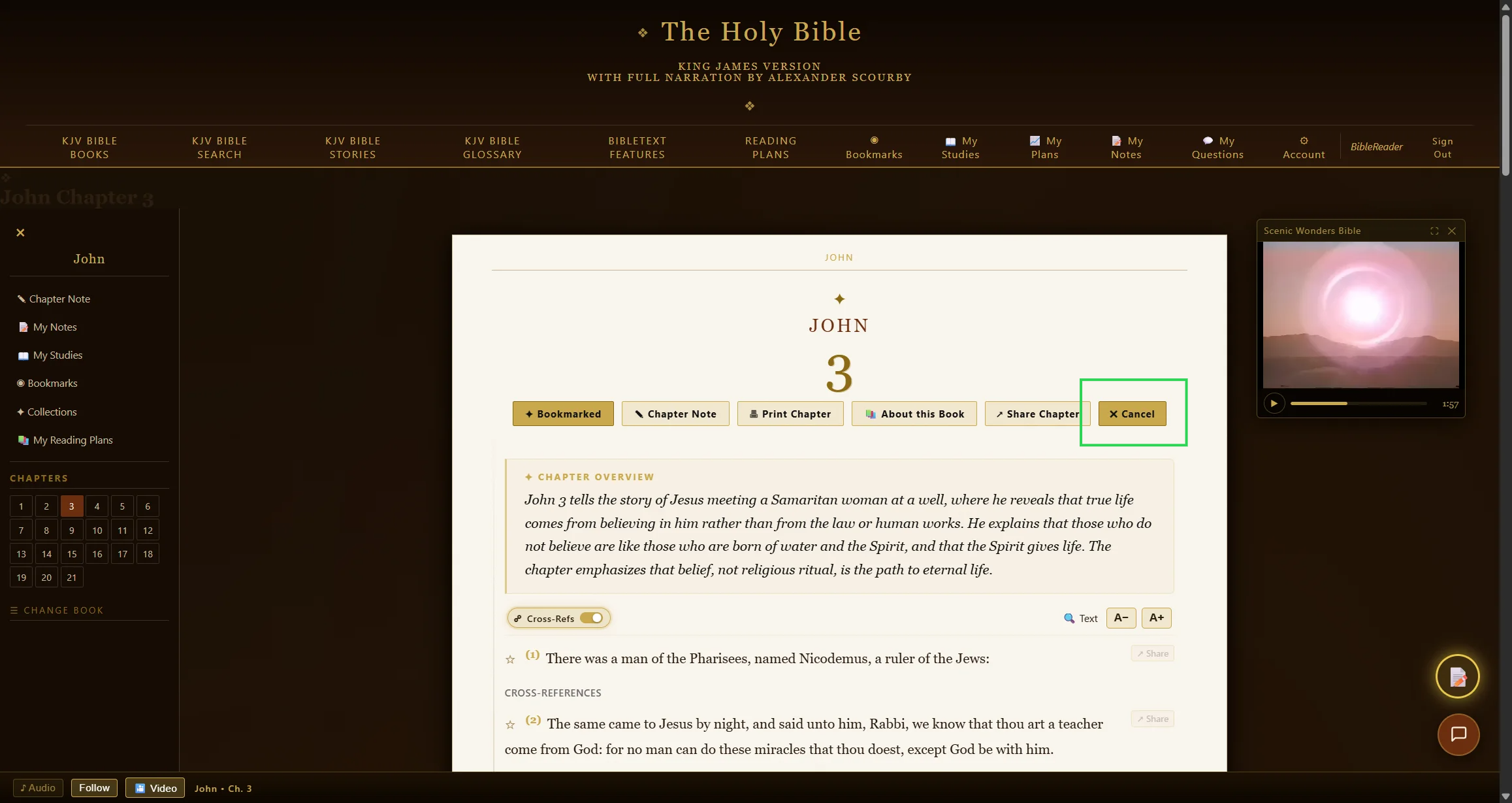
Step 1 — click Select Verses at the top of the page to start the process.
A collection can be attached to a Bible Study at any time — see Saving Anything to a Study. It still remains visible under My Bookmarks either way.